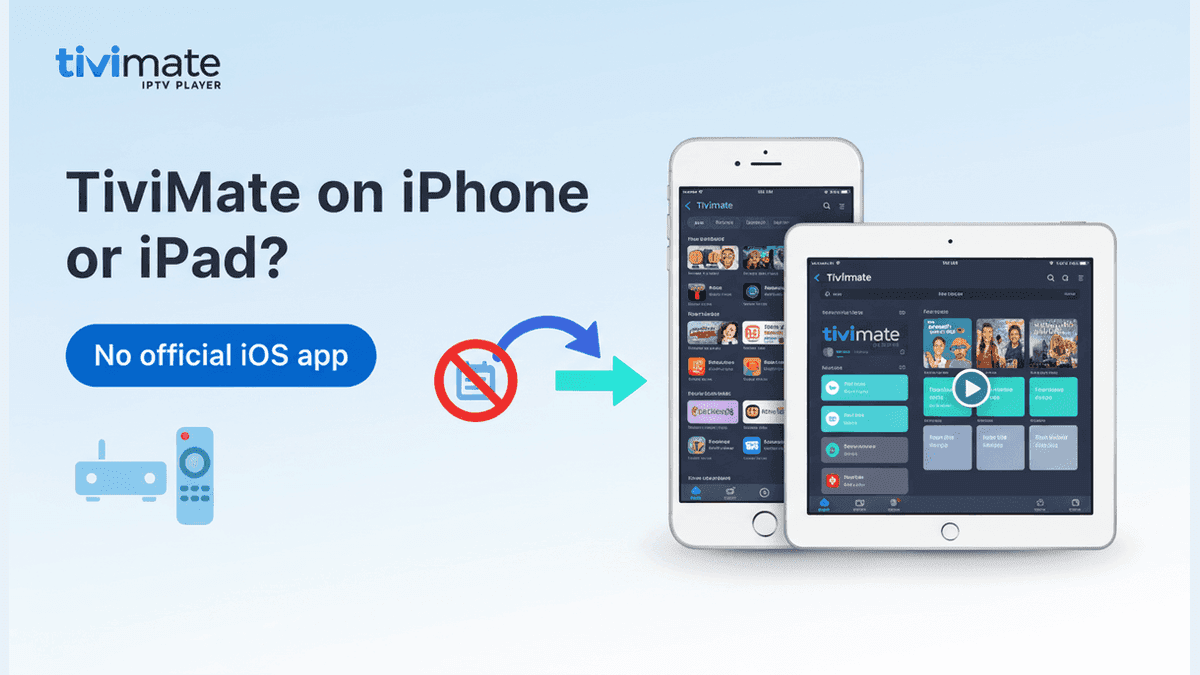
If you are trying to install TiviMate on your iPhone or iPad, you will not find the official app in the Apple App Store. TiviMate is designed mainly for Android TV devices and remote-control navigation. It is not available as a native iOS application.
But you can still watch your IPTV subscription on an iPhone or iPad. You just need another IPTV player that supports Apple devices and accepts your provider's playlist details, such as an M3U URL or Xtream Codes login.
The setup is quite simple. You install a compatible player from the App Store, enter your IPTV details, and wait for your channels to load. Here is how to do it.
Can You Install TiviMate on iPhone or iPad?
No, you cannot officially install TiviMate on an iPhone or iPad. The application is designed for Android TV, and its official Google Play listing states that it is not optimised for touch devices such as phones and tablets.
There is also no official TiviMate iOS version that you can download from the Apple App Store.
| Device | TiviMate availability |
|---|---|
| Android TV | Yes |
| Google TV | Yes |
| Compatible Fire TV devices | Yes |
| Android phones and tablets | Not optimised for these devices |
| iPhone | No official app |
| iPad | No official app |
| Apple TV | No official app |
| Windows or Mac | No native desktop app |
So, if you see a website offering a TiviMate iPhone APK or an unofficial iOS installation file, avoid it. iPhones do not install Android APK files, and unofficial downloads can put your device and personal information at risk.
How to Watch IPTV on iPhone or iPad Instead?
The easiest option is to use an IPTV player available through the Apple App Store.
There are different IPTV players for iOS. Some support M3U playlists, while others also accept Xtream Codes login details. Before downloading one, check that it supports the connection method provided by your IPTV service.
For example, iPTV Player + is an App Store listing for iPhone and iPad that supports M3U and Xtream Codes playlists. Other compatible players may offer different features and pricing.
Remember, these are alternatives to TiviMate, not official versions of TiviMate.
How to Set Up an IPTV Player on iPhone or iPad
Once you have selected a compatible player, follow these steps.
1. Open the Apple App Store
Open the App Store on your iPhone or iPad and search for an IPTV player.
Check its compatibility, developer information, supported playlist formats, and current reviews before installing it. Some apps are free to download but charge for additional features.
2. Install the IPTV Player
Choose the application that supports your IPTV provider's login method and tap Get or Install.
Once the installation finishes, open the app. You may see options to add a playlist, connect an account, or enter your IPTV details.
3. Add Your M3U Playlist
If your IPTV provider has given you an M3U URL, select the M3U or playlist option in the application.
You will generally need to:
- Open the playlist or account section.
- Select the option to add an M3U playlist.
- Enter the M3U URL supplied by your provider.
- Add a playlist name if the app requests one.
- Save the details and wait for the channels to load.
Make sure you copy the complete URL. Even a small typing mistake can stop the playlist from loading.
4. Use Xtream Codes Login if Supported
Some IPTV players also support Xtream Codes API login. If your provider has supplied these details, you can use them instead of an M3U link.
You will generally need three pieces of information:
| Login detail | What it means |
|---|---|
| Server URL | The address of your IPTV service |
| Username | Your assigned account username |
| Password | Your assigned account password |
Open the Xtream Codes or API login option, enter the information exactly as provided, and save it.
Not every iPhone IPTV player supports this login method, so check the app's features first.
5. Load Your Channels and EPG
After adding your playlist, give the application some time to process the available content.
Your live TV channels should appear if the playlist is valid and supported. If your provider supplies EPG data, you may also be able to view programme names, timings, and descriptions.
Some applications load EPG information automatically, while others require you to enter a separate EPG URL or refresh the guide.
6. Start Watching on Your iPhone or iPad
Once everything is loaded, open a channel and check whether the stream plays correctly.
You can also explore available options such as favourites, channel categories, subtitles, playback settings, and AirPlay, depending on the player you installed.
That is all you need to start watching your authorised IPTV content on an Apple device.
TiviMate vs IPTV Players for iPhone and iPad
Since TiviMate is not available on iOS, you need to choose an alternative that works with your device.
| Feature | TiviMate | Compatible iOS IPTV Player |
|---|---|---|
| iPhone support | No | Depends on the app |
| iPad support | No | Depends on the app |
| M3U playlist | Yes | Available in many players |
| Xtream Codes | Yes | Depends on the app |
| EPG | Yes | Depends on the app |
| Touchscreen navigation | Not its intended design | Usually designed for touch |
| Apple App Store installation | No | Yes, for listed apps |
| Premium features | TiviMate Premium | Varies by application |
If you mainly watch IPTV on an Android TV or Firestick, TiviMate remains a suitable option on compatible devices. If you want to watch on an iPhone or iPad, choose an iOS player with the playlist and playback features you need. For Firestick setup, see our How to Download or Install TiviMate on FireStick guide.
Can You Use TiviMate Companion on iPhone?
No. TiviMate Companion is not an iPhone IPTV player or an alternative version of TiviMate.
Its purpose is to help unlock TiviMate Premium on devices without Google Play and manage activated devices. It does not play channels, load M3U playlists, or provide an iOS viewing interface. Learn more in our TiviMate Companion App guide.
If you want to watch IPTV on your iPhone, you need a separate application made for iOS.
Common Problems When Setting Up IPTV on iPhone or iPad
Sometimes your playlist may not load correctly on the first attempt. Before changing applications, check these common issues.
| Problem | What to check |
|---|---|
| Playlist not loading | Check the M3U URL for typing errors |
| Login failed | Verify your username, password, and server address |
| Channels missing | Ask your provider whether the playlist is active |
| EPG not showing | Check whether EPG data is supplied and configured |
| Buffering | Test your internet connection and try another stream |
| App not opening a channel | Check the supported stream format and player settings |
| Playlist expired | Confirm your account status with your provider |
If the same stream fails in more than one player, the issue may be with the source or internet connection rather than the application.
Frequently Asked Questions
Is TiviMate available for iPhone?
No. There is no official TiviMate application for iPhone. You can use a compatible IPTV player from the Apple App Store instead.
Can I install TiviMate on an iPad?
No. TiviMate is designed mainly for Android TV devices and does not have an official iPad version.
What is the best TiviMate alternative for iPhone?
The best option depends on your requirements. Look for an iOS IPTV player that supports your playlist format, EPG data, and preferred playback features.
Can I use an M3U playlist on an iPhone?
Yes. Many IPTV players available for iPhone support M3U playlists. You can add your playlist URL through the app's playlist or account settings.
Can I use Xtream Codes on an iPad?
Yes, provided the IPTV player you choose supports Xtream Codes login. You will generally need your server URL, username, and password.
Does TiviMate Companion work on iPhone?
No. TiviMate Companion is a separate Android app used for Premium activation and device management. It is not an iPhone IPTV player.
Can I watch IPTV on iPhone without installing TiviMate?
Yes. Install a compatible IPTV player from the App Store and add your authorised M3U playlist or supported login details.
Can I watch IPTV on my iPad using AirPlay?
Some iOS IPTV players support AirPlay, allowing you to send compatible video playback to an Apple TV or another supported device. This depends on the application and the stream.
Conclusion
You cannot install the official TiviMate app on an iPhone or iPad because it is designed for Android-based TV devices. However, you do not need to miss out on IPTV just because you use an Apple device.
Install a compatible IPTV player from the App Store, add your M3U playlist or Xtream Codes details, and configure the EPG if your service provides it. For playlist help on TiviMate-compatible devices, see How to Add Playlist to TiviMate.
If you already use TiviMate on a Firestick or Android TV, you can continue using it there and choose a separate iOS player for your iPhone or iPad. This is the simplest way to enjoy your authorised IPTV content across different devices. Looking for a compatible service? Review our IPTV Plans.