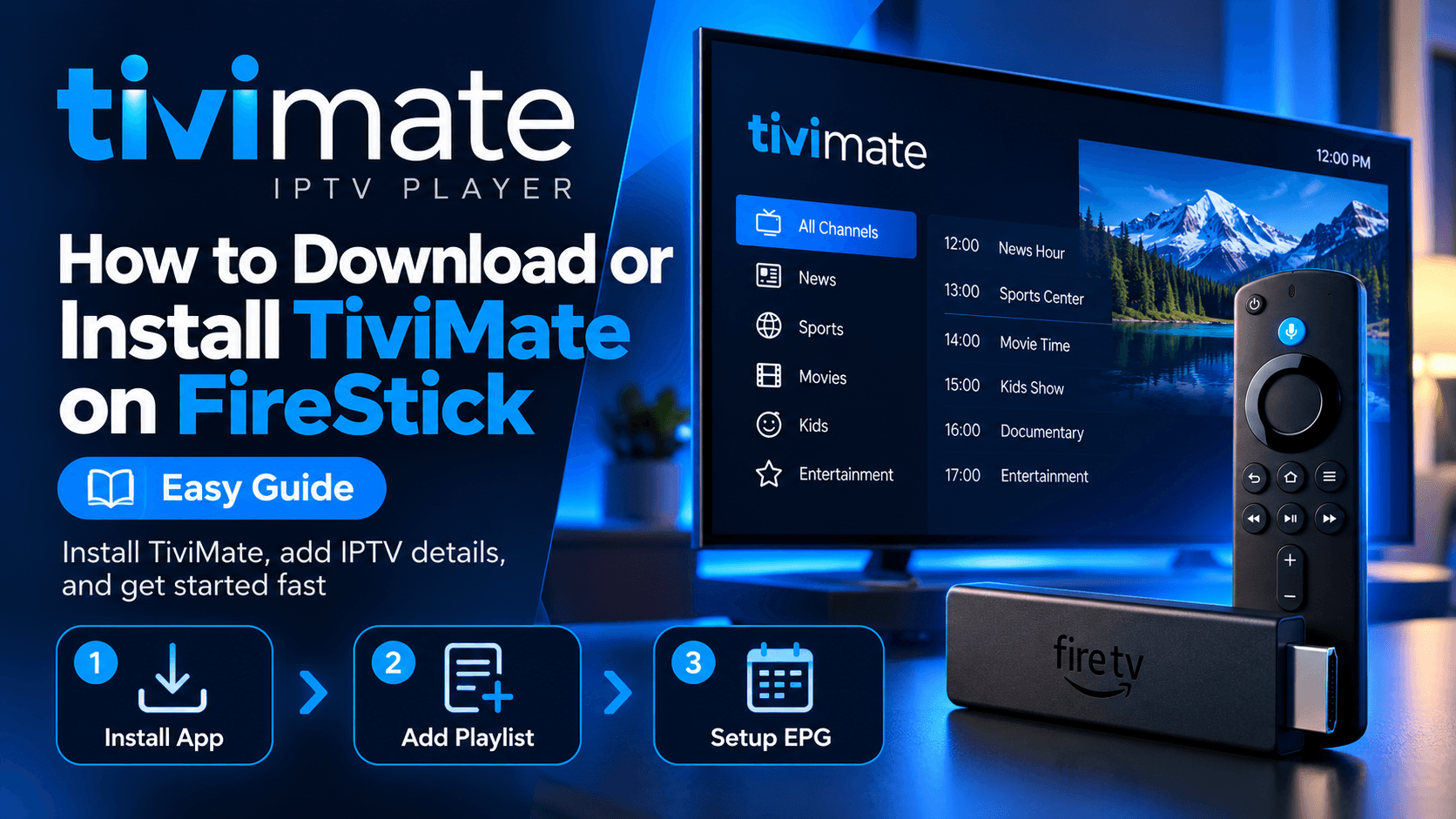
Want to watch IPTV on your FireStick but not sure where to start?
The process is straightforward once you understand that there are two separate parts: the IPTV player and the IPTV service. TiviMate is a popular player for organising and playing compatible IPTV playlists, while your IPTV provider supplies the channels and streaming information.
In this guide, you will learn how to install IPTV on FireStick, set up TiviMate, add an M3U playlist or Xtream Codes, configure your TV guide and troubleshoot the most common problems. If you need the complete player setup process, see our TiviMate IPTV Setup Guide.
Quick Answer
To install IPTV on FireStick, first prepare your Fire TV device for the required app installation method, then install a compatible IPTV player such as TiviMate. After installing TiviMate, add your IPTV provider's M3U playlist or Xtream Codes, allow the channels to load, and configure EPG if your provider supplies it.
What Do You Need to Install IPTV on FireStick?
Before starting, make sure you have:
- An Amazon FireStick or compatible Fire TV device
- A stable internet connection
- TiviMate or another compatible IPTV player
- An active IPTV subscription, if required
- An M3U playlist URL or Xtream Codes login
- EPG information, if supplied by your provider
TiviMate itself does not provide TV channels. It works as a media player that connects to compatible playlists or login details supplied by an IPTV service.
If you need the complete TiviMate setup process, see our TiviMate IPTV Setup Guide.
Step 1: Prepare Your FireStick
Turn on your FireStick and make sure it is connected to the internet.
Go to the Fire TV settings and check your device software and available installation options.
The exact menus can differ between Fire TV versions. Amazon's current documentation shows that Fire TV is moving across different operating-system environments, so instructions written for older FireStick versions may not appear exactly the same on every device.
If your Fire TV device supports installing applications from outside the Amazon Appstore, you may need to enable the appropriate installation permission in its Developer Options.
On supported older Fire OS devices, this has commonly been found under:
Amazon also documents Apps from Unknown Sources as a Fire TV sideloading setting on supported devices.
Step 2: Install a Downloader App if Required
For Fire TV devices that support traditional Android APK sideloading, Downloader is commonly used to retrieve an APK.
You can search for Downloader from the Fire TV interface and install it if it is available for your device.
Open Downloader and use its URL field only with a download address you trust.
Amazon officially describes installing applications outside the Appstore as sideloading and documents alternative methods such as ADB for Fire TV.
Because Fire TV software is changing, the exact sideloading process may differ on newer devices.
Step 3: Install TiviMate on FireStick
Once you have a supported method for installing the TiviMate APK, download the current TiviMate application package from a trusted source.
Follow the installation prompt and wait for the installation to finish.
Then open TiviMate from your FireStick's applications.
You should see the option to add a playlist during the initial setup.
If you need a more detailed installation walkthrough, use our TiviMate installation guide.
Step 4: Add Your IPTV Playlist
After opening TiviMate, select:
You will normally use one of the connection methods provided by your IPTV service.
Option 1: M3U Playlist
If your provider gives you an M3U URL:
- Select the M3U playlist option.
- Choose the URL method.
- Enter the complete M3U link.
- Continue.
- Give the playlist a name if requested.
- Wait for TiviMate to load the channels.
Copy the complete URL carefully. One missing character can prevent the playlist from loading.
Option 2: Xtream Codes
If your provider gives you Xtream Codes details:
- Select the Xtream Codes option.
- Enter the server URL.
- Enter your username.
- Enter your password.
- Continue.
- Wait for TiviMate to load your content.
Your username and password are normally case-sensitive, so copy them exactly as provided.
For a complete explanation of both methods, read our guide on how to add a playlist to TiviMate.
Step 5: Set Up the EPG
EPG means Electronic Programme Guide.
It displays programme information, schedules and upcoming shows inside your IPTV player.
Some IPTV providers supply EPG information automatically. Others provide a separate EPG URL.
If your provider gives you an EPG URL, add it through the EPG settings in TiviMate.
If your channels appear but the guide says No Information, check whether your provider has supplied an EPG source and whether the URL was entered correctly.
Step 6: Test Your IPTV Channels
After your playlist has loaded, open Live TV and test several channels.
Check:
- Channel playback
- Channel groups
- EPG information
- Audio
- Picture quality
- Channel switching
Do not test only one channel. If one channel does not work while others play normally, the issue may be with that particular stream rather than your FireStick setup.
How to Improve IPTV Performance on FireStick
A stable connection is more important than simply having a high advertised internet speed.
For better IPTV performance:
Use a Strong Wi-Fi Connection
Keep the FireStick within a reasonable range of your router.
If possible, reduce interference between the FireStick and router.
Restart Your FireStick
If IPTV suddenly starts buffering or applications become slow, restart the FireStick.
A restart can clear temporary system and application issues.
Clear Unnecessary App Cache
FireStick devices have limited storage. Too many applications and cached files can contribute to performance problems.
Remove applications you no longer use and clear unnecessary cache where appropriate.
Test Different Channels
If only one or two channels buffer while others work correctly, the issue may be related to those streams or the IPTV provider.
If every channel buffers, investigate your internet connection, device performance and IPTV service.
Common IPTV Problems on FireStick
| Problem | What to Check |
|---|---|
| IPTV app will not install | Check device compatibility and available storage |
| TiviMate will not open | Restart FireStick and check the installed app |
| Playlist will not load | Recheck M3U URL or Xtream Codes |
| Login failed | Confirm server, username and password |
| EPG shows no information | Check the EPG source supplied by your provider |
| IPTV keeps buffering | Test your connection and other channels |
| Some channels are missing | Check your IPTV subscription and channel groups |
| FireStick storage is full | Remove unused apps and clear unnecessary cache |
Is TiviMate Free or Premium on FireStick?
TiviMate has free and Premium functionality.
The free version can be useful for basic IPTV playback, while Premium provides additional features depending on the current version.
If you are only testing an IPTV service, start with the features you actually need.
If you require advanced features such as additional playlist management or other Premium functionality, review the current Premium options before purchasing.
You can also read our TiviMate Premium vs Free comparison to understand the differences.
Do You Need an IPTV Subscription?
Yes, if you want access to IPTV channels.
TiviMate is the player. It does not automatically provide the channels you want to watch.
You need a compatible IPTV service that provides supported access details such as an M3U playlist or Xtream Codes.
If you are looking for a compatible service, you can review our IPTV Plans before choosing a subscription.
Always make sure that the IPTV content you access is authorised for your use.
Final FireStick IPTV Setup Checklist
Before you finish, check the following:
- FireStick is connected to the internet.
- Your Fire TV software supports the required installation method.
- TiviMate is installed successfully.
- Your IPTV subscription is active.
- You have the correct M3U or Xtream Codes details.
- Your playlist loads successfully.
- Your channels play correctly.
- EPG is configured if supplied.
- You have tested several channels.
- You are using a trusted application source.
Final Thoughts
Installing IPTV on FireStick becomes much easier when you separate the process into three steps: install the player, connect your IPTV service and test playback.
TiviMate can handle the player side of the setup, while your IPTV provider supplies the playlist or login details.
If you are starting from scratch, begin with our TiviMate IPTV Setup Guide. If you already have your IPTV credentials, follow our M3U and Xtream Codes playlist guide to connect your service and start watching.
Call-To-Action
If you already have TiviMate installed, the next step is connecting your IPTV service. Check our IPTV Plans to see the available options, then use your M3U or Xtream Codes details to complete the setup.
Frequently Asked Questions
Can I install IPTV on a FireStick?
Yes. You can use an IPTV player such as TiviMate on a FireStick and connect it to an IPTV service using an M3U playlist or Xtream Codes login. If the player is not available through the Amazon Appstore, it may need to be sideloaded. Amazon refers to installing apps outside the Appstore as sideloading.
How do I install TiviMate on FireStick?
To install TiviMate, prepare your FireStick, install a suitable downloader or sideloading method when required, download the TiviMate APK from a trusted source, and complete the installation. After installing TiviMate, you need an IPTV subscription or playlist to load channels.
Do I need an IPTV subscription to use TiviMate?
Yes, if you want to watch live channels or other IPTV content. TiviMate is a media player, so you need a playlist or login details from an IPTV service. The player itself does not provide your TV channels.
How do I add IPTV to TiviMate on FireStick?
Open TiviMate and select Add Playlist. You can normally choose between an M3U playlist and Xtream Codes. For Xtream Codes, enter the server URL, username, and password provided by your IPTV service. For M3U, paste the complete playlist URL.
What is the difference between M3U and Xtream Codes?
An M3U playlist generally uses one long URL containing your playlist information. Xtream Codes uses separate fields for the server URL, username, and password. The correct option depends on what your IPTV provider gives you.
Why is my IPTV not working on FireStick?
Common causes include incorrect login details, an expired subscription, poor internet connection, an incorrect playlist URL, or a temporary provider server problem. First, check your internet connection and make sure your username, password, server URL, or M3U link was entered exactly as provided.
Why are my IPTV channels not loading in TiviMate?
Give TiviMate some time to process the playlist, especially if it contains many channels. If nothing loads, check the playlist credentials and internet connection. You can also refresh the playlist from TiviMate's settings.
How do I get the TV guide or EPG on TiviMate?
EPG stands for Electronic Program Guide and shows program information for your channels. Depending on your IPTV service and playlist format, EPG information may load automatically or you may need to enter an XMLTV EPG URL provided by your IPTV service.
Can I use TiviMate on multiple FireStick devices?
This depends on your TiviMate account and IPTV subscription terms. Your IPTV provider may also limit the number of simultaneous connections allowed by your subscription, so check the conditions of your service before using the same account on multiple devices.
Is TiviMate Free on FireStick?
TiviMate has a free version, while Premium provides additional features. The FireStick installation itself and your IPTV subscription are separate from the TiviMate Premium upgrade. If you are deciding whether Premium is worthwhile, see our TiviMate Premium vs Free comparison.
What should I do if TiviMate says the playlist is invalid?
Check the playlist URL or Xtream Codes credentials carefully. Make sure there are no extra spaces or missing characters. If the details are correct but the playlist still fails, contact your IPTV provider to confirm that your subscription and server are active.
Is IPTV legal on FireStick?
Using a FireStick or an IPTV player is not, by itself, illegal. The important issue is whether the content you access is properly licensed and authorized for distribution in your location. Use IPTV services and content that you are legally entitled to access.