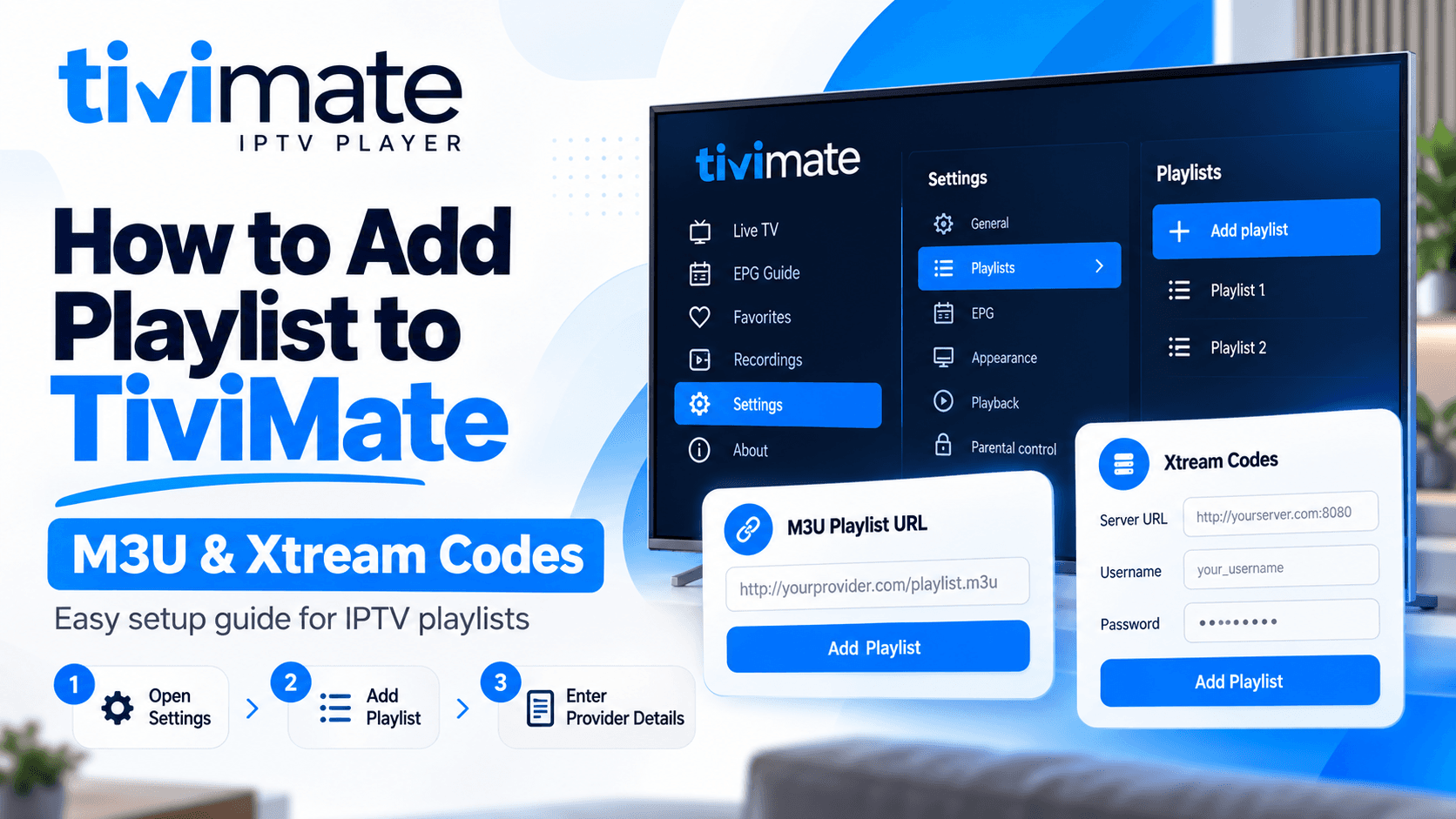
Adding an IPTV playlist to TiviMate is usually a simple process, but the first setup can be confusing if you are not sure which login method your IPTV provider has given you.
Most TiviMate users will receive either an M3U playlist URL or Xtream Codes details. Both methods can connect your IPTV service to TiviMate, but the information you enter is different.
In this guide, you will learn how to add a playlist to TiviMate using M3U and Xtream Codes, what information you need before starting, how to configure EPG, and what to do if your playlist does not load. If you are still deciding between Free and Premium, see TiviMate Premium vs TiviMate Free.
Quick Answer
To add an IPTV playlist to TiviMate, open TiviMate → Settings → Playlists → Add Playlist. Choose M3U if your provider gave you a playlist URL, or choose Xtream Codes if you received a server URL, username and password. Enter the details carefully, let TiviMate load the playlist, and then check your channels and EPG.
What Do You Need Before Adding a Playlist to TiviMate?
Before opening TiviMate, make sure you have the information supplied by your IPTV service.
Depending on your provider, you may receive:
- An M3U or M3U8 playlist URL
- Xtream Codes server URL
- Xtream Codes username
- Xtream Codes password
- EPG URL
- Subscription activation information
You also need TiviMate installed on a compatible device.
If you have not configured your IPTV service yet, you can follow our TiviMate IPTV Setup Guide for the complete setup process.
Your IPTV provider supplies the content and access details. TiviMate acts as the player that organises and plays the supported playlist.
What Is an M3U Playlist?
An M3U playlist is a file or URL containing information that a compatible media player can use to access media streams.
For IPTV, your provider may send you an M3U URL that contains information about channels, groups and stream addresses.
An M3U link may look something like this:
The actual URL you receive will be different.
Never share your personal M3U URL publicly, because it may contain account information or credentials.
What Are Xtream Codes?
Xtream Codes is a login method used by many IPTV services.
Instead of entering one long M3U URL, you normally enter three separate pieces of information:
- Server URL
- Username
- Password
For example:
- Server: http://example.com:8080
- Username: yourusername
- Password: yourpassword
Your provider should give you the exact details required for your account.
M3U vs Xtream Codes: Which Should You Use?
Both methods can connect an IPTV service to TiviMate. The best option is usually the method your provider specifically supports.
| Feature | M3U Playlist | Xtream Codes |
|---|---|---|
| Setup method | Enter one playlist URL | Enter server, username and password |
| Easy for beginners | Yes | Yes |
| Channel categories | Depends on playlist | Usually provided by the service |
| EPG | May be supplied separately | May be provided through the service |
| VOD | Depends on playlist | Often organised separately |
| TV series | Depends on playlist | Often organised separately |
| Best approach | Use when provider gives M3U | Use when provider gives Xtream login |
Do not try to guess or convert your provider's login details unless you understand exactly what they have supplied. Using the wrong server address or credentials can prevent the playlist from loading.
How to Add an M3U Playlist to TiviMate
If your IPTV provider has given you an M3U or M3U8 URL, follow these steps.
Step 1: Open TiviMate
Launch TiviMate on your compatible TV device.
If you are opening the application for the first time, you may see an option to add a playlist directly.
If you already have TiviMate configured, open the main menu and go to:
The exact wording can vary slightly between TiviMate versions and devices.
Step 2: Select M3U Playlist
After selecting Add Playlist, choose the M3U playlist option.
TiviMate will ask you how you want to provide the playlist.
For an online playlist supplied by your IPTV provider, select the URL option.
Step 3: Enter Your M3U URL
Paste the complete M3U URL supplied by your IPTV provider.
Be careful when entering the address.
A single missing character, extra space or incorrect letter can cause the playlist to fail.
Do not manually shorten the URL.
If your provider sent the link by email or message, copy it directly whenever possible.
Step 4: Let TiviMate Load the Playlist
After entering the M3U URL, continue to the next step.
TiviMate will attempt to connect to the playlist source and retrieve the available information.
Depending on your IPTV service, this may include:
- Live TV channels
- Channel groups
- Logos
- Programme information
- Movies
- TV series
- Catch-up content
The available sections depend on what your IPTV service actually provides.
Step 5: Name Your Playlist
TiviMate may ask you to give the playlist a name.
You can use a simple name such as:
- My IPTV
- Home IPTV
If you use several services, choose a name that makes each playlist easy to identify.
Step 6: Check Your Channels
Once the playlist has loaded, open the Live TV section.
Check whether your channel categories and channels are appearing correctly.
Try opening a few channels to confirm that playback is working.
If the playlist loads but channels do not play, the issue may be related to the IPTV service, stream availability, device or internet connection rather than the playlist entry itself.
Step 7: Configure Your EPG
EPG stands for Electronic Programme Guide.
It provides programme information such as:
- Current programme
- Upcoming programmes
- Programme times
- Channel schedules
Some IPTV services provide EPG information automatically.
Others provide a separate EPG URL.
If your provider gives you an EPG URL, use the information supplied by the provider to configure it in TiviMate.
For a more complete setup process, see our TiviMate IPTV Setup Guide.
How to Add Xtream Codes to TiviMate
If your provider has given you a server address, username and password, Xtream Codes may be the correct setup method.
Step 1: Open TiviMate Settings
Launch TiviMate and open:
Select the Xtream Codes option if it is available in your version.
Step 2: Enter the Server Address
Your IPTV provider should give you a server address.
For example:
Enter the server exactly as supplied.
Do not add extra characters or change the address unless your provider tells you to.
Step 3: Enter Your Username
Enter the username supplied with your IPTV subscription.
Check uppercase and lowercase characters if your provider uses them.
A small typing mistake can cause an authentication error.
Step 4: Enter Your Password
Enter the password supplied by your provider.
Avoid adding spaces before or after the password.
If you are copying the password, check that your device has not accidentally copied an additional space.
Step 5: Continue With the Setup
After entering the server address, username and password, continue.
TiviMate will attempt to connect to the service.
If the login is accepted, available categories and content should begin loading.
Step 6: Check Live TV, Movies and Series
Depending on your IPTV service, the account may provide different sections.
You may see:
- Live TV
- Movies
- TV Series
- Catch-up
- Categories
- EPG
Not every IPTV service provides all of these options.
If a particular section is missing, check what your subscription actually includes before changing TiviMate settings.
M3U or Xtream Codes: Which Is Easier?
For most beginners, both methods are straightforward when the provider has supplied the correct information.
The main difference is how the login information is presented.
- M3U: You normally paste one playlist URL.
- Xtream Codes: You enter a server address, username and password separately.
If your IPTV provider gives you both options, Xtream Codes can be convenient because the information is separated into individual fields and the service can provide structured categories where supported.
However, you should normally use the connection method recommended by your IPTV provider.
How to Add an IPTV Playlist to TiviMate on Firestick
The playlist process is similar after TiviMate has been installed on your Firestick. If you still need to install the app, follow our guide on how to download or install TiviMate on FireStick.
Open TiviMate and select the option to add a playlist.
Then choose the method supplied by your IPTV provider:
- M3U → Enter your M3U URL
- Xtream Codes → Enter server, username and password
After the playlist loads, check your channels and EPG.
If you have not installed or configured TiviMate yet, start with our TiviMate IPTV Setup Guide before adding your playlist.
What If TiviMate Does Not Load My Playlist?
A playlist that does not load does not always mean TiviMate is broken.
There are several things worth checking first.
Check Your Internet Connection
Make sure your device is connected to the internet.
Try opening another online application on the same device.
If other applications are also having connection problems, your network may be the issue.
Check Your M3U URL
If you are using M3U, carefully check the complete URL.
Make sure:
- Nothing is missing
- There are no extra spaces
- The URL has not been truncated
- Your subscription is still active
- You copied the correct playlist
Check Your Xtream Codes
If you are using Xtream Codes, check all three fields:
- Server URL
- Username
- Password
One incorrect field can prevent authentication.
Check Your Subscription
An expired or inactive IPTV subscription may prevent your playlist from loading.
If your credentials were working previously and suddenly stopped working, contact your IPTV provider to confirm the account status.
Restart TiviMate
Close and reopen TiviMate.
If necessary, restart your streaming device as well.
This is a simple step, but it can help rule out a temporary application or network issue.
What If the Playlist Loads but Channels Are Missing?
If TiviMate successfully loads the playlist but some channels are missing, first check the IPTV service itself.
The missing channel may:
- Not be included in your plan
- Have been removed by the provider
- Be temporarily unavailable
- Belong to a category that is hidden
- Have changed its name or location
Do not assume that every missing channel is caused by TiviMate.
What If EPG Is Not Working?
If your channels appear but programme information says No Information, the problem may be related to EPG data.
First check whether your IPTV provider supplies an EPG.
If an EPG URL was provided, make sure you entered the correct URL.
Also remember that EPG information comes from the content source. TiviMate cannot create programme schedules that your provider does not supply.
Our TiviMate IPTV Setup Guide also covers EPG configuration and common setup problems.
Can I Add More Than One Playlist to TiviMate?
TiviMate supports playlist management, although the exact features available can depend on your version and licence.
Multiple playlists can be useful if you have more than one IPTV service or want to keep different content sources separate.
For example, you might have:
- Main IPTV service
- Backup IPTV service
- Sports-focused playlist
Before adding additional playlists, check your current TiviMate version and TiviMate Premium features.
How to Update a TiviMate Playlist
If your IPTV provider changes the channel list, you may need to update the playlist.
Open your playlist settings and use the available update or refresh option.
If your provider has given you a new M3U URL or new Xtream Codes credentials, update the saved information accordingly.
Avoid deleting a working playlist immediately if you are simply trying to update its details. Check whether the playlist can be edited first.
How to Remove a Playlist From TiviMate
If you no longer use an IPTV service, you can remove its playlist from TiviMate.
Open:
Select the playlist you want to remove and use the available delete option.
Be careful when deleting a playlist because associated settings or organisation may also be removed.
If you may need the playlist again later, check whether your version offers an option to disable or hide it instead.
Common TiviMate Playlist Errors
| Problem | Possible Cause | What to Check |
|---|---|---|
| Playlist will not load | Incorrect URL | Recheck the complete M3U URL |
| Login failed | Incorrect credentials | Check server, username and password |
| Channels missing | Subscription issue | Check what your IPTV plan includes |
| EPG missing | EPG not supplied or incorrect | Check your provider's EPG details |
| Channels buffer | Network or stream issue | Test your connection and another channel |
| Playlist stopped working | Subscription or server change | Contact your IPTV provider |
| Movies or series missing | Service limitation | Check your subscription details |
| TiviMate cannot connect | Network or server issue | Test internet and provider connection |
How to Get the IPTV Details You Need
If you already have an IPTV subscription, your provider should supply the information required to connect it to TiviMate.
This can include:
- For M3U: M3U playlist URL
- For Xtream Codes: Server URL, Username, Password
- For EPG: EPG URL, if supplied
If you are looking for an IPTV subscription that can be used with TiviMate, you can review our available IPTV Plans for TiviMate and check the setup information provided with the selected service.
Only use IPTV content and services that you are authorised to access.
TiviMate Playlist Setup Checklist
Before finishing your setup, check the following:
- TiviMate is installed on a compatible device.
- Your IPTV subscription is active.
- You have the correct M3U URL or Xtream Codes details.
- You entered the credentials exactly as supplied.
- Your internet connection is working.
- Your playlist has loaded successfully.
- Your channels appear in the guide.
- Your EPG is configured if provided.
- You tested several channels.
- You saved your playlist information somewhere secure.
Frequently Asked Questions
How do I add an M3U playlist to TiviMate?
Open TiviMate and go to Settings → Playlists → Add Playlist. Select the M3U playlist option, choose the URL method, and enter the complete M3U link provided by your IPTV service. Continue and allow TiviMate to load the playlist. Once loaded, check your channels and configure EPG information if your provider supplies it.
How do I add Xtream Codes to TiviMate?
Open TiviMate → Settings → Playlists → Add Playlist and select Xtream Codes. Enter the server address, username and password provided by your IPTV service. Continue the setup and wait for TiviMate to authenticate your account and load the available content. Make sure all three details are entered exactly as supplied.
What is the difference between M3U and Xtream Codes in TiviMate?
M3U normally uses a single playlist URL containing information about available streams. Xtream Codes uses separate server, username and password fields. Both can be used to connect compatible IPTV services to TiviMate. The method you should use depends mainly on which connection details your IPTV provider supplies.
Why is my TiviMate playlist not loading?
A TiviMate playlist may fail to load because of an incorrect URL, incorrect login details, an expired subscription, an unavailable server or an internet connection problem. Recheck your M3U URL or Xtream Codes credentials first. If the information is correct, contact your IPTV provider to confirm that the service is active.
Why are my TiviMate channels showing no information?
"No Information" usually means TiviMate has not received the required programme guide data. Check whether your IPTV provider supplies EPG information and whether the correct EPG details have been configured. EPG data depends on the content source, so TiviMate cannot display programme information that your IPTV service does not provide.
Can I use TiviMate with an IPTV subscription?
Yes, TiviMate can be used with compatible IPTV services that provide supported playlist or login information. Your IPTV provider supplies the content and access details, while TiviMate acts as the player. Before subscribing, check that the provider supports a connection method compatible with your device and TiviMate version.
Can I add multiple IPTV playlists to TiviMate?
Yes, TiviMate supports playlist management, with the exact number and advanced functionality depending on the current version and licence. Multiple playlists can be useful when you have more than one compatible IPTV service. If you need several playlists, check the current TiviMate Premium features before upgrading.
Do I need an EPG to use TiviMate?
No, an EPG is not necessarily required for basic channel playback. EPG stands for Electronic Programme Guide and provides programme schedules and information. If your IPTV service supplies EPG data, adding it can make the TV guide more useful. The availability and accuracy of EPG information depend on the IPTV source.
Final Takeaway
Adding an IPTV playlist to TiviMate is usually straightforward once you have the correct information from your IPTV provider.
If you have an M3U URL, use the M3U playlist option and paste the complete URL.
If you have Xtream Codes, enter the server address, username and password separately.
After the playlist loads, check your channels, test playback and configure the EPG if your service provides one.
If you are still setting up your IPTV service, continue with our TiviMate IPTV Setup Guide for the next steps. If you need an IPTV subscription compatible with TiviMate, you can also View IPTV Plans. If you still have a persistent setup problem, Contact our support team.