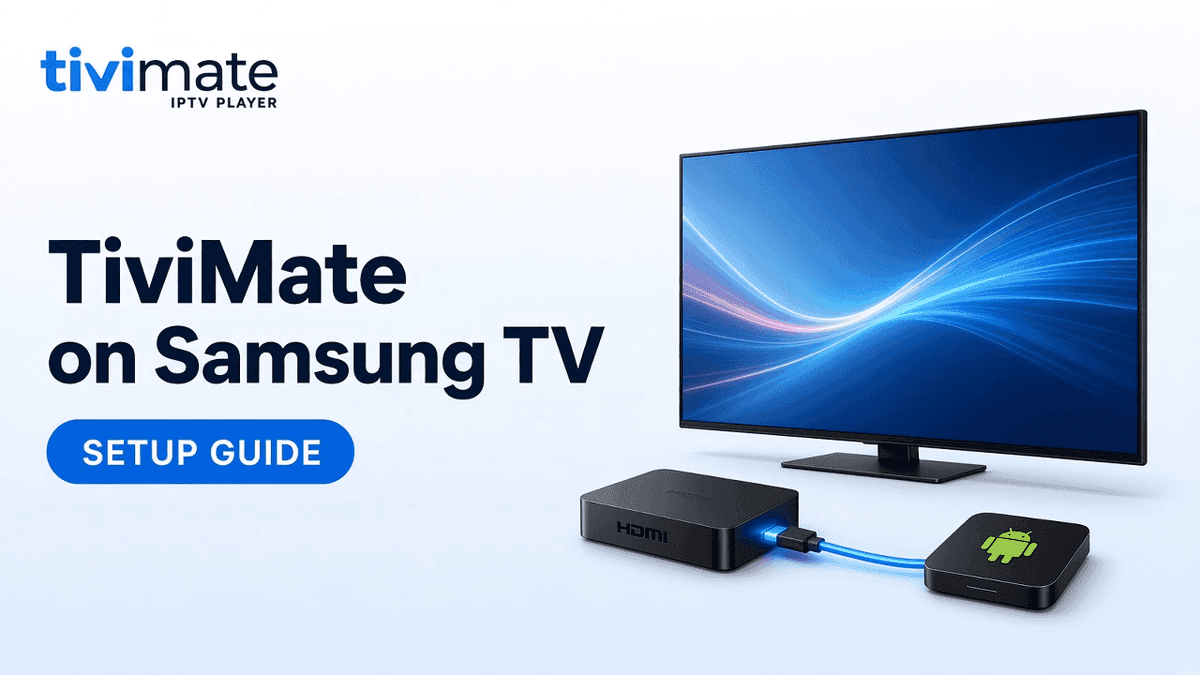
If you own a Samsung Smart TV and want to use TiviMate for watching IPTV, you may have already searched for the app in the Samsung Apps Store. However, there is one important thing to understand: TiviMate is not officially available for direct installation on Samsung Smart TVs.
Samsung televisions generally run on Tizen OS, while TiviMate is designed for Android TV devices. This means you cannot download the regular TiviMate APK and install it directly on your Samsung television.
But there is a simple solution. You can connect a compatible Android TV box, Google TV device, or Fire TV device to your Samsung TV through HDMI and run TiviMate on that external device.
This guide explains how to get TiviMate on Samsung TV, how to install and set it up, and which alternatives you can consider if you do not want to purchase another streaming device.
Can You Install TiviMate on Samsung Smart TV?
No, you cannot directly install the official TiviMate IPTV Player on a standard Samsung Smart TV.
The main reason is the difference between their operating systems:
| Feature | Samsung Smart TV | TiviMate |
|---|---|---|
| Operating system | Tizen OS | Android-based platforms |
| Native TiviMate support | No | Yes, on compatible devices |
| Android APK installation | Not supported | Supported on compatible Android devices |
| App store | Samsung Apps | Google Play on supported devices |
| External streaming device | Supported through HDMI | Can run on a compatible device |
Samsung's Tizen operating system does not support Android APK applications. Therefore, searching for TiviMate in Samsung's app store will not provide the official Android TV application.
You should also avoid websites offering modified TiviMate APK files specifically for Samsung TVs. They cannot make an Android application compatible with Tizen.
How to Get TiviMate on Samsung TV
The easiest way to use TiviMate on your Samsung television is to connect an external streaming device.
You can choose from:
- Android TV box
- Google TV streaming device
- Compatible Amazon Fire TV device
These devices connect to your Samsung television through an HDMI port and provide a compatible environment for running TiviMate.
Step 1: Connect a Streaming Device to Your Samsung TV
First, choose a compatible streaming device that supports TiviMate.
- Connect your Android TV box, Google TV device, or compatible Fire TV device to an available HDMI port.
- Connect the device to its power supply.
- Turn on your Samsung TV.
- Press the Source or Input button on your remote.
- Select the HDMI input where you connected the streaming device.
- Complete the device's initial setup and connect it to the internet.
Your Samsung TV now works as the display, while the external device runs the TiviMate application.
Step 2: Download and Install TiviMate
Once your streaming device is ready, you can install TiviMate.
For Android TV or Google TV:
- Open the Google Play Store.
- Search for TiviMate IPTV Player.
- Check the developer information to ensure you select the official application.
- Select Install.
- Wait for the installation to finish.
- Open TiviMate from your applications menu.
For compatible Fire TV devices:
Use the official TiviMate download instructions for your device. Installation methods can differ depending on the Fire TV model and operating system. See our How to Download or Install TiviMate on FireStick guide.
Check compatibility before purchasing a streaming device. Not every Fire TV model supports Android APK applications, particularly newer models running Vega OS.
Step 3: Open TiviMate and Add Your IPTV Playlist
After installation, open TiviMate on your streaming device.
You will need an IPTV playlist from a provider that supports a compatible format.
TiviMate supports several playlist connection methods, including M3U, Xtream Codes, and Stalker Portal.
To add an M3U playlist:
- Open TiviMate.
- Select Add Playlist.
- Choose the M3U playlist option.
- Enter the M3U URL supplied by your provider.
- Select Next and allow the playlist to load.
- Complete the setup.
To use Xtream Codes:
- Select Add Playlist.
- Choose Xtream Codes login.
- Enter your server URL.
- Add your username and password.
- Continue and wait for the channel information to load.
Make sure you enter the correct information. An incorrect URL or password can prevent the playlist from connecting.
For more detailed instructions, read our guide on how to add a playlist to TiviMate.
Step 4: Configure Your TiviMate Settings
Once your playlist has loaded, you can customize TiviMate according to your preferences.
Here are some useful settings to explore:
- EPG: Load and refresh your electronic programme guide.
- Favourites: Add frequently watched channels to your favourites list.
- Channel Groups: Organize channels into categories.
- Playback: Adjust available playback settings.
- Appearance: Customize the interface and guide layout.
- Parental Controls: Restrict access to selected channels or content.
You can now use TiviMate through your Samsung TV's screen with the remote control connected to your external streaming device.
Best Alternatives to TiviMate for Samsung TV
If you do not want to purchase an Android TV box or streaming stick, you can look for IPTV players developed specifically for Samsung's Tizen platform.
Some options worth checking include:
| IPTV Player | What to Know |
|---|---|
| IBO Player | IPTV media player with playlist management through its supported activation process |
| Smart IPTV | Playlist-based player with its own activation system |
| SmartOne IPTV | IPTV player designed for supported Smart TV platforms |
| IPTV Smarters | Check whether a compatible Samsung version is available for your TV |
These applications have different installation and activation requirements. Their availability depends on your Samsung TV model, region, and the current Samsung Apps Store catalogue.
To check availability:
- Press the Home button on your Samsung remote.
- Open the Apps section.
- Select the Search option.
- Enter the name of your preferred IPTV player.
- Check its compatibility and developer information.
- Install it if it is available for your television.
Remember that these applications are alternatives, not official versions of TiviMate.
You will also need a compatible IPTV playlist from a provider. Installing an IPTV player does not automatically give you television channels.
TiviMate on Samsung TV: External Device vs Native IPTV App
Which option should you choose? It depends on whether you specifically want TiviMate or simply need an IPTV player for your Samsung television.
| Comparison | External Streaming Device | Samsung IPTV App |
|---|---|---|
| TiviMate availability | Yes, on compatible devices | No |
| Additional hardware | Required | Not required |
| Installation | On the external device | Through Samsung Apps |
| Remote control | Streaming device remote | Samsung TV remote |
| Playlist support | Depends on the player | Depends on the selected app |
| Best for | Users who want TiviMate | Users who prefer a direct TV app |
Common Problems When Setting Up TiviMate on Samsung TV
Even after connecting a compatible streaming device, you may experience some setup or playback issues.
Here are a few common problems and their possible solutions:
| Problem | Possible Solution |
|---|---|
| TiviMate does not appear in Samsung Apps | It is not available as a native Tizen app. Use a compatible streaming device. |
| No signal on HDMI | Check the HDMI connection and select the correct input. |
| Playlist not loading | Verify your M3U URL or Xtream Codes details. |
| Channels keep buffering | Check your internet connection and contact your provider. |
| EPG not updating | Refresh the guide and check the EPG source. |
| Remote control not responding | Check remote pairing and device navigation settings. |
If you experience buffering after installation, follow our TiviMate buffering troubleshooting guide.
Frequently Asked Questions
How to download TiviMate on Samsung TV?
You cannot download the official TiviMate application directly onto a standard Samsung Smart TV because it runs Tizen OS. Connect a compatible Android TV, Google TV, or Fire TV device through HDMI and install TiviMate on that device.
How to get TiviMate on Samsung TV without an Android box?
You can check the Samsung Apps Store for IPTV players that support Tizen. However, if you specifically want TiviMate, you need a compatible external streaming device.
Is TiviMate available for Samsung Smart TV?
No. TiviMate does not have an official native Samsung Tizen version. It is designed for compatible Android-based TV platforms.
Can I install TiviMate APK on Samsung TV using a USB drive?
No. Samsung Tizen does not support standard Android APK installation. Copying an APK file to a USB drive will not make it compatible with your television.
Can I use TiviMate on Samsung TV with Firestick?
Yes, provided you use a compatible Fire TV device that supports TiviMate. Connect it to your Samsung TV through HDMI, install TiviMate on the streaming device, and add your IPTV playlist.
Which IPTV player is best for Samsung TV?
There is no single best option for every Samsung television. IBO Player, Smart IPTV, and SmartOne IPTV are examples worth checking in the Samsung Apps Store. Availability and features depend on your TV model and region.
Does TiviMate Premium include IPTV channels?
No. TiviMate Premium unlocks additional application features, but it does not provide live TV channels, movies, or an IPTV subscription. You need a separate compatible playlist.
Final Thoughts
Although you cannot install TiviMate directly on a standard Samsung Smart TV, you can still enjoy its features by connecting a compatible Android TV, Google TV, or Fire TV device through HDMI.
If you want the actual TiviMate experience, this is the most practical solution. Otherwise, you can explore IPTV applications available directly through Samsung's Apps Store.
Before downloading anything, check your TV's operating system and the compatibility of your chosen streaming device. This will help you avoid installation problems and choose the right setup for watching IPTV on your Samsung television. Looking for a compatible service? Review our IPTV Plans.