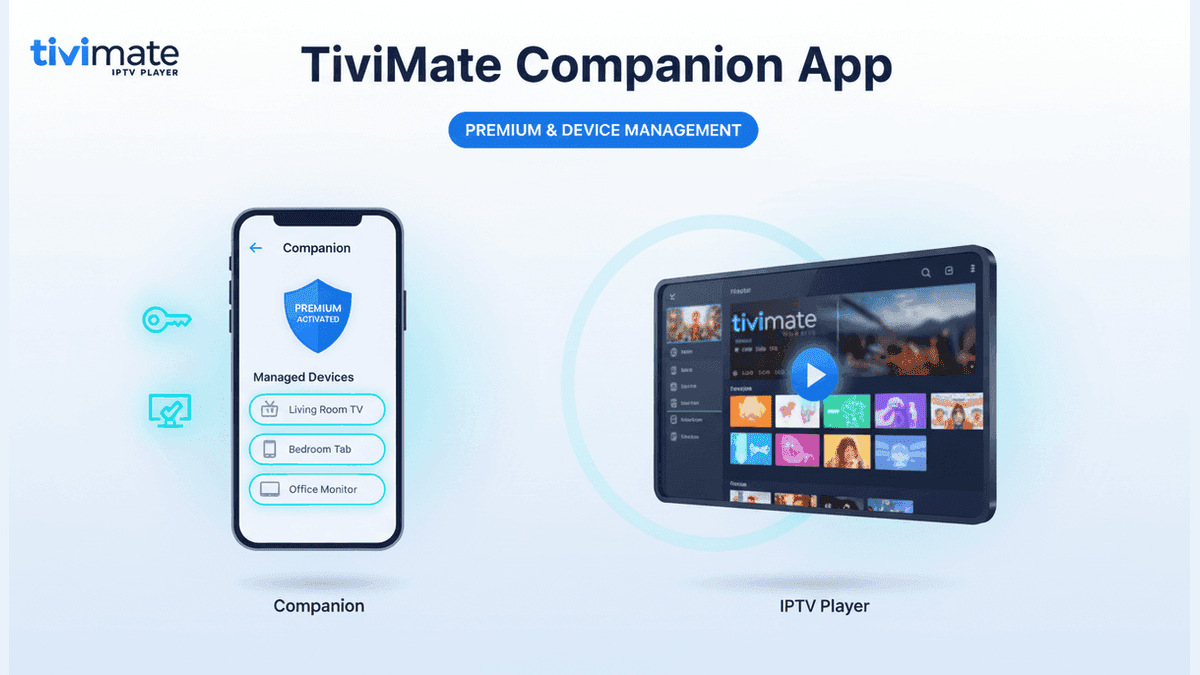
The TiviMate Companion app helps users unlock TiviMate Premium on compatible devices without Google Play and manage activated devices. If you use TiviMate on an Amazon Firestick or another supported streaming device, Companion may be part of your Premium setup.
However, it is important to understand one thing: TiviMate Companion is not an IPTV player. It does not stream live TV, load M3U playlists, or provide channels. Those tasks belong to the main TiviMate IPTV Player.
In this guide, you will learn what TiviMate Companion does, who needs it, how to get started, and how to resolve common activation problems.
What Is the TiviMate Companion App?
TiviMate Companion is a separate app published by Armobsoft FZE, the developer associated with TiviMate. Its stated purposes are to unlock Premium functionality on devices without Google Play and manage activated devices.
Here is how the two apps differ:
| Feature | TiviMate Companion | TiviMate IPTV Player |
|---|---|---|
| Unlock Premium | Supports the Premium activation process | Uses the available activation options |
| Manage activated devices | Yes | Main viewing and playback interface |
| Play live TV | No | Yes, with a compatible playlist |
| Add M3U playlists | No | Yes |
| Display EPG | No | Yes, with supported guide data |
| Provide IPTV channels | No | No, a separate content source is required |
What Does TiviMate Companion Do?
The app is useful for two main purposes.
1. Unlock TiviMate Premium
If your streaming device does not have Google Play, you may need TiviMate Companion on a compatible Android phone or tablet to complete the Premium purchase and activation process.
The exact steps depend on your device and the options available in your current TiviMate version.
2. Manage activated devices
TiviMate Companion also supports management of devices activated with Premium. This can help when organising your setup across compatible streaming devices.
Check the current account and device-management options in the app before making changes to an existing activation.
How to Use TiviMate Companion
Follow these steps if you need Companion to purchase or activate TiviMate Premium.
Step 1: Install the official Companion app
On a compatible Android phone or tablet, open the Google Play Store and search for TiviMate Companion.
Check that the publisher is Armobsoft FZE before installing the app. Avoid unofficial modified APKs or downloads from unknown websites.
Step 2: Open the app and follow the account prompts
Launch TiviMate Companion and follow the account or sign-in instructions shown on screen. If you are creating an account, use an email address you can access and a strong, unique password.
Keep your TiviMate account credentials separate from your IPTV provider login details.
Step 3: Choose your Premium option
If you want Premium, review the purchase options and the price displayed in the app. Confirm the current terms before completing payment.
Do not assume that a Premium purchase includes an IPTV subscription. It unlocks TiviMate app features, not television channels or streaming content.
Step 4: Activate Premium in TiviMate
Open the main TiviMate app on your TV device. Navigate to the Premium or account section and follow the activation prompts.
Sign in using the TiviMate account associated with your Premium purchase, if requested. Complete the on-screen instructions to activate the supported device.
Menu names and activation steps may differ by app version, so follow the options displayed on your device.
Step 5: Confirm activation
Return to TiviMate and check whether the Premium features you purchased are available. If activation fails, verify your account details, internet connection, and device activation status before trying again.
Do You Need TiviMate Companion for Firestick?
You may need TiviMate Companion if your Firestick does not have Google Play and you want to purchase or activate TiviMate Premium through the Companion workflow.
If you use an Android TV or Google TV device with Google Play, check whether you can complete the Premium process directly within TiviMate. Companion is not automatically required for every device.
Remember that installing TiviMate and activating Premium are separate from adding your IPTV playlist. You must still configure a compatible playlist in the main app to watch content. For Firestick installation help, see our How to Download or Install TiviMate on FireStick guide.
TiviMate Companion Not Working? Try These Fixes
If you cannot sign in or activate Premium, try the following checks:
- Check your login details: Make sure you are using the correct TiviMate account, not your IPTV provider username and password.
- Check your internet connection: A connection problem may prevent the app from completing account verification.
- Update the app: Install available updates from the official source.
- Review device activations: Check your account's available device-management options if you cannot activate another device.
- Follow the current activation prompts: Older guides may show menu names or steps that no longer match your version.
- Avoid repeated purchases: If a payment has completed but Premium is not active, check your account and purchase status before paying again.
If the problem continues, consult the official app listing or available TiviMate support options.
TiviMate Companion vs TiviMate Premium: What Is the Difference?
TiviMate Companion is the supporting app used for Premium activation on certain devices and for managing activated devices. TiviMate Premium is the paid upgrade that unlocks additional functionality in the main player.
Neither one provides live TV channels or an IPTV subscription.
If you are deciding whether the upgrade is worthwhile, read our guide to TiviMate Premium vs Free.
Frequently Asked Questions
Is the TiviMate Companion app free?
The Companion app is available to install through Google Play, with in-app purchases. TiviMate Premium is paid, and you should check the current price shown before purchasing.
Does TiviMate Companion provide IPTV channels?
No. It does not play channels or provide an IPTV subscription. You need the main TiviMate player and a compatible playlist from a source you are authorised to use.
Can I add an M3U playlist in TiviMate Companion?
No. Add your M3U playlist or supported connection details in the main TiviMate IPTV Player.
Do I need TiviMate Companion on Android TV?
Not necessarily. If your device has Google Play and offers Premium activation directly in TiviMate, you may not need Companion.
Is TiviMate Companion a remote-control app?
Its official listing describes Premium unlocking and activated-device management, not TV remote-control functionality.
What should I do if TiviMate Premium is not activating?
Check that you are signing in with the correct TiviMate account, confirm your connection, review device activation options, and follow the current prompts in the app.
Final Thoughts
The TiviMate Companion app is useful when you need to activate TiviMate Premium on a device without Google Play or manage activated devices. It is not a second IPTV player, and it will not add channels or fix playlist problems by itself.
For the smoothest setup, install the official app, follow the activation instructions for your device, and keep your TiviMate account separate from your IPTV provider credentials. Once Premium is activated, use the main TiviMate app to add your playlist, configure the EPG, and watch your authorised content.