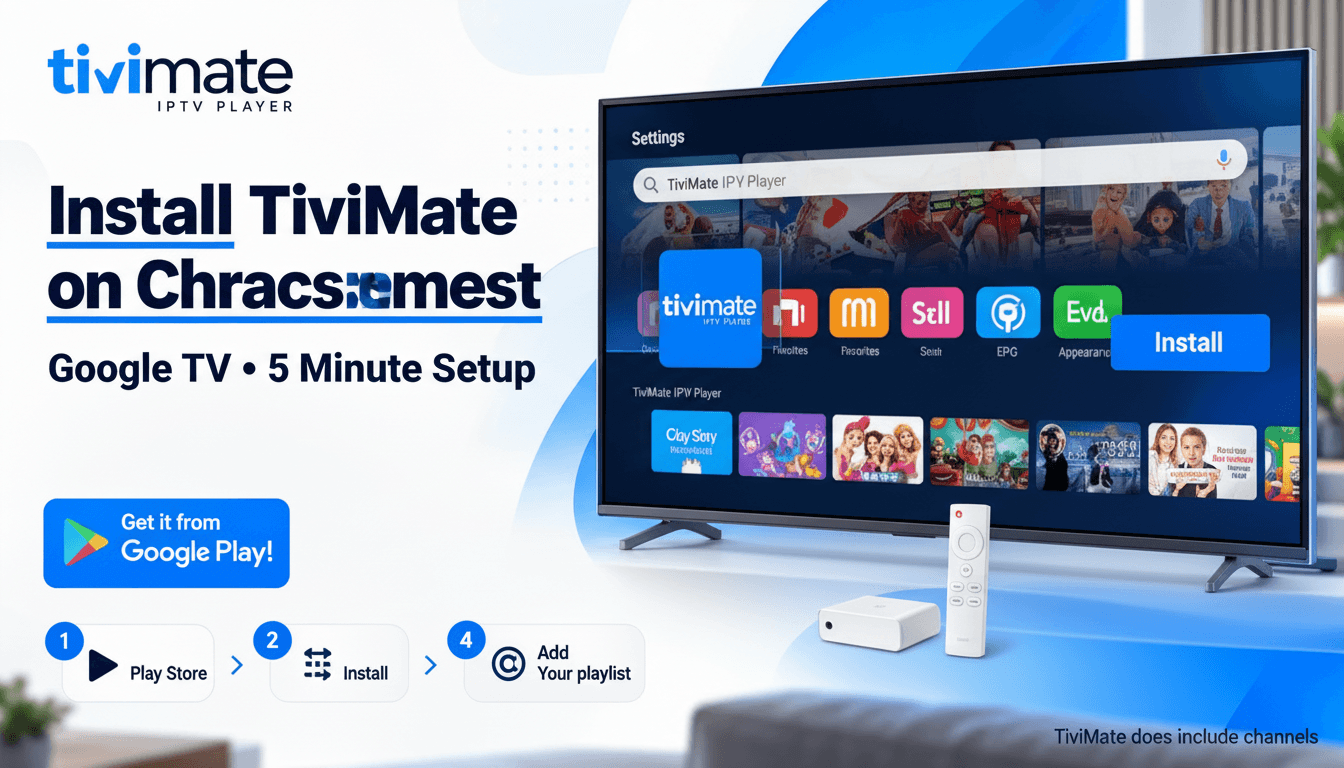
If you want to install TiviMate on Chromecast with Google TV, the process is much easier than many older guides suggest.
You normally do not need Downloader, an APK file, or complicated sideloading steps. Chromecast with Google TV runs Google TV and provides access to the Google Play Store, so you can search for TiviMate IPTV Player and install the app directly.
TiviMate is designed for Android TV and remote control navigation, making Chromecast with Google TV a suitable device for the app. It supports M3U, Xtream Codes, and Stalker Portal playlists, along with features such as EPG, favourites, recording, and multiview. TiviMate itself does not provide TV channels or an IPTV subscription. You need to add your own playlist from a lawful IPTV source.
Can You Install TiviMate on Chromecast with Google TV?
Yes. TiviMate works on Chromecast with Google TV.
There is an important distinction, though.
The original Chromecast devices were mainly casting receivers. They do not provide the same app environment as Chromecast with Google TV.
Chromecast with Google TV HD and 4K are different. They have:
- Google TV
- A remote control
- Google Play Store
- Android TV-based software
- Support for installing compatible TV applications
That means you can install TiviMate directly rather than casting TiviMate from your phone.
If you have an older Chromecast without Google TV, you cannot simply install TiviMate on it because it does not work like an Android TV streaming device.
How to Install TiviMate on Chromecast with Google TV
The easiest method is the official Google Play Store installation.
Step 1: Turn On Your Chromecast with Google TV
Connect the Chromecast with Google TV to your television using HDMI and make sure it has internet access.
Complete the initial Google TV setup if you have not already done so.
You should have:
- Your Chromecast connected to HDMI
- The Chromecast remote paired
- A Wi-Fi connection
- A Google account signed in
Step 2: Open the Apps Section
From the Google TV home screen, move to the Apps section.
You can also use the Google Assistant or search button on the remote.
Google's current Google TV instructions allow users to search for an app by name and install it directly when it is available.
Step 3: Search for TiviMate
Search for:
Make sure you select the correct application.
Check that the developer is Armobsoft FZE.
Do not confuse TiviMate with unrelated IPTV applications that may appear in the search results.
Step 4: Select Install
Open the TiviMate listing and select Install.
Wait for the download and installation to finish.
When it is ready, select Open.
That's it.
You have now installed the TiviMate IPTV Player on Chromecast with Google TV.
You do not normally need to download a TiviMate APK or use a Downloader code for this device.
What If TiviMate Does Not Appear in the Play Store?
This is one of the most common points of confusion.
First, check that you actually have Chromecast with Google TV, rather than an older Chromecast model.
Then try:
- Restarting Chromecast.
- Checking your internet connection.
- Opening Google Play again.
- Searching for the full name, TiviMate IPTV Player.
- Checking that your Google TV software is updated.
- Checking whether the app is available for your device or region.
There have been recent user reports of TiviMate not appearing in Google Play in particular circumstances, including regional availability questions. In those cases, users have discussed sideloading as an alternative. However, if the app is available in your Play Store, the direct installation is the cleaner option.
Do not jump to sideloading before checking the normal Play Store route.
TiviMate Is Installed, But There Are No Channels
This is normal.
Installing TiviMate does not automatically provide live TV channels.
TiviMate is an IPTV player. It needs a playlist or compatible source before it can display your channels.
The official TiviMate listing supports common playlist methods, including:
- M3U
- Xtream Codes
- Stalker Portal
You need the appropriate details from your IPTV provider or another lawful IPTV source.
M3U Playlist
If you received an M3U URL, choose the M3U playlist option and enter the URL exactly as provided.
Xtream Codes
If your provider gave you Xtream Codes details, you will normally need:
- Server URL
- Username
- Password
Enter each field carefully.
A very common mistake is accidentally adding a space to the server URL when typing it with the remote.
If you get an error after entering Xtream Codes, check the URL character by character before changing other settings.
Stalker Portal
If your provider uses a Stalker Portal, select that playlist method and enter the portal information supplied by the provider.
Some Stalker Portal services also require a MAC address.
If that happens, do not assume they need the physical MAC address of your Chromecast.
TiviMate can generate a MAC address for its Stalker Portal playlist. Recent TiviMate users have specifically discussed this distinction because providers sometimes ask for a MAC address beginning with a particular prefix. For related troubleshooting, see our Stalker Portal and Multiple Screen Issues guide.
How to Add an IPTV Playlist to TiviMate
After opening TiviMate:
- Select Add Playlist.
- Choose your playlist method.
- Enter your provider's information.
- Give TiviMate time to load the playlist.
- Wait for the channel groups to appear.
- Open a few channels to test playback.
If you are using an M3U or Xtream Codes playlist, make sure your login information is current.
For a complete walkthrough, use our How to Add Playlist to TiviMate guide.
Set Up the EPG on Chromecast with Google TV
EPG means Electronic Program Guide.
It provides the programme information you see in TiviMate's TV guide.
Your IPTV source may provide EPG automatically, or it may give you a separate EPG URL.
If the guide is empty:
- Check your IPTV provider's EPG information.
- Make sure the correct EPG source is assigned.
- Update the EPG.
- Check channel matching.
- Restart TiviMate if necessary.
If channels work but the guide says No Information, do not immediately remove your playlist.
The problem may be with the EPG source rather than TiviMate.
For detailed troubleshooting, see our TiviMate EPG Not Updating Fixes guide.
TiviMate Buffering on Chromecast with Google TV
Chromecast with Google TV can run TiviMate well, but buffering is not always caused by the device.
Possible causes include:
- Weak Wi-Fi
- Network congestion
- IPTV stream problems
- Provider server issues
- Large or overloaded playlists
- Device storage problems
- Playback or decoder compatibility
- Other applications consuming system resources
Start by testing several channels.
If one channel buffers while others play normally, the individual stream may be the problem.
If every channel buffers, check your network and device first.
Try These Quick Fixes
- Restart Chromecast with Google TV.
- Restart your router.
- Test another channel.
- Move the device closer to your router.
- Use a suitable Ethernet adapter if possible.
- Clear TiviMate's cache.
- Close unnecessary background applications.
- Check whether the same playlist works on another compatible device.
Recent Reddit users generally report that TiviMate works well on Chromecast with Google TV, although some users prefer newer Google TV hardware because of responsiveness and storage. Other users report that older Chromecast 4K devices still run TiviMate smoothly when the device is kept relatively light.
For more troubleshooting steps, see our TiviMate Buffering Fix guide.
Chromecast with Google TV Storage Problem
Storage is worth checking because Chromecast with Google TV has limited internal storage.
If TiviMate refuses to install, update, or behave normally, check your available storage.
Go to the device's storage settings and remove applications you no longer use.
You can also clear the cache of large applications.
Be careful not to confuse:
Clearing data can reset an application's stored information.
If you have a large number of applications installed, freeing storage can also make the overall Google TV experience more responsive.
How to Make TiviMate Run Better on Chromecast with Google TV
You do not need to change dozens of settings to get a good experience.
Start with the basics.
Keep the Device Updated
Install available Google TV system updates and keep TiviMate updated through Google Play when updates are available.
Remove Unused Apps
A crowded device can leave less storage and resources available for the applications you actually use.
Use a Stable Network
For live IPTV, connection stability matters more than simply having a high advertised internet speed.
If possible, use a strong Wi-Fi connection or a compatible Ethernet setup.
Keep Your Playlist Manageable
Very large playlists can take longer to load and process.
If your provider gives you hundreds or thousands of channels that you never watch, organising or hiding unnecessary groups can make navigation easier.
TiviMate Premium on Chromecast with Google TV
You can use TiviMate Premium features on Chromecast with Google TV.
However, there are two separate things to understand:
- TiviMate Premium and your IPTV subscription are not the same.
- TiviMate Premium unlocks features within the player. It does not provide live TV channels.
- Your IPTV playlist or subscription comes from your IPTV provider or another lawful source.
The official TiviMate listing makes this distinction clear.
If you want to understand what Premium actually adds, see our TiviMate Premium vs Free guide.
Do You Need TiviMate Companion?
TiviMate Companion is used for certain Premium-related functions and device management, particularly where Google Play is not available.
If you are using Chromecast with Google TV and can access Google Play normally, the installation process is simpler because the device already has the Play Store.
Do not install random “TiviMate Companion” APKs from unofficial websites.
Use the official application source whenever possible.
Chromecast with Google TV HD vs 4K for TiviMate
Both versions can be used with TiviMate.
The main difference is the hardware and video output capability.
| Features | Chromecast with Google TV HD | Chromecast with Google TV 4K |
|---|---|---|
| TiviMate | Yes | Yes |
| Google TV | Yes | Yes |
| Google Play | Yes | Yes |
| HD output | Yes | Yes |
| 4K output | No | Yes |
| TiviMate EPG | Yes | Yes |
| M3U playlists | Yes | Yes |
| Xtream Codes | Yes | Yes |
| Stalker Portal | Yes | Yes |
If you only have a 1080p television, the HD version can be sufficient.
If you have a 4K television and want 4K playback, the 4K model is the more appropriate choice.
Chromecast with Google TV vs Google TV Streamer for TiviMate
If you are choosing between older Chromecast with Google TV hardware and the newer Google TV Streamer, the newer device can be worth considering if you want more storage and a more responsive experience.
Recent Reddit discussions include users who moved from Chromecast to Google TV Streamer and reported better responsiveness and more available storage. This is user experience rather than a guarantee for every setup.
If your current Chromecast runs TiviMate smoothly, there is no need to replace it simply because newer hardware exists.
Can You Cast TiviMate From Your Phone to Chromecast?
This is different from installing TiviMate on Chromecast with Google TV.
If you have an old casting-only Chromecast, you cannot install TiviMate directly on the device.
You may be able to mirror a phone screen, but that is not the same experience as running TiviMate directly on Google TV.
If you want the full TiviMate interface, remote navigation, EPG, playlists and player features, installing TiviMate directly on Chromecast with Google TV is the better approach.
Common TiviMate Problems on Chromecast with Google TV
TiviMate says “No Information”
Check your EPG source and update the guide.
Playlist will not load
Check your M3U URL or Xtream Codes credentials. Pay particular attention to accidental spaces in the server URL.
TiviMate keeps buffering
Test multiple channels, restart the network, and check whether the problem affects all streams or only specific channels.
TiviMate is slow
Free storage, restart the device, remove unused applications, and reduce unnecessary playlist clutter.
TiviMate is missing from Google Play
Confirm that you are using Chromecast with Google TV and check Play Store availability for your region and device.
Installation fails
Check available storage first. A nearly full Chromecast can cause app installation and update problems.
Stalker Portal asks for a MAC address
Check the MAC address generated within TiviMate for the Stalker Portal playlist rather than automatically giving the physical MAC address of the Chromecast.
Frequently Asked Questions
Can I install TiviMate on Chromecast with Google TV?
Yes. Chromecast with Google TV supports TiviMate, and the simplest method is to install TiviMate IPTV Player from the Google Play Store.
Do I need Downloader to install TiviMate on Chromecast with Google TV?
Usually, no. If TiviMate is available in your device's Google Play Store, install it directly. Downloader is mainly relevant when you need to sideload an app.
Does TiviMate work on Chromecast with Google TV 4K?
Yes. TiviMate works on Chromecast with Google TV 4K. The device provides Google TV and access to compatible Android TV applications.
Does TiviMate work on Chromecast with Google TV HD?
Yes. The HD model can run TiviMate. The main hardware difference is that the HD model does not provide 4K output.
Can I install TiviMate on an old Chromecast?
No, not in the same way. Older casting-only Chromecast devices do not provide the Google TV environment and Play Store needed to install TiviMate directly.
Does TiviMate come with IPTV channels?
No. TiviMate is an IPTV media player. You must add your own compatible playlist from an IPTV provider or another lawful source.
Can I use Xtream Codes with TiviMate on Chromecast?
Yes. TiviMate supports Xtream Codes. Enter the server URL, username and password supplied by your provider.
Why is my TiviMate EPG not working on Chromecast?
The issue may be your EPG source, channel mapping, outdated guide data or provider. First update the EPG and check whether your provider's guide source is working.
Why is TiviMate buffering on Chromecast with Google TV?
Buffering can result from Wi-Fi, network congestion, the IPTV stream, provider servers, device performance, or playback compatibility. Test several channels to determine whether the issue is universal or stream-specific.
Is TiviMate Premium worth it on Chromecast with Google TV?
If you use TiviMate regularly, Premium can be useful because it unlocks additional player features. However, Premium does not include IPTV channels or a separate IPTV subscription.
Can I use TiviMate on multiple Chromecast devices?
TiviMate Premium supports device management according to its licensing system. Your IPTV provider's simultaneous connection limits are separate from TiviMate's application licensing.
Why does TiviMate ask for a MAC address?
This normally happens when you are setting up a Stalker Portal playlist. The required MAC address can be different from the physical MAC address of your Chromecast device.
Is Chromecast with Google TV good for TiviMate?
Yes. It is a practical TiviMate device because it uses Google TV, supports the Play Store and has a remote designed for TV applications.
Final Setup Checklist
Before you start watching TiviMate on Chromecast with Google TV, make sure:
- You have Chromecast with Google TV, not an older casting-only Chromecast.
- Your device is connected to the internet.
- Your Google account is set up.
- TiviMate IPTV Player is installed from Google Play when available.
- Your IPTV playlist details are correct.
- M3U, Xtream Codes or Stalker Portal information has been entered correctly.
- Your EPG source is configured.
- Your channels load successfully.
- Your TV guide displays programme information.
- Your network is stable.
- Your Chromecast has enough free storage.
Final Verdict
If you have Chromecast with Google TV, installing TiviMate is straightforward.
You normally do not need to sideload an APK or use a Downloader code.
After that, configure your EPG and test a few channels.
If TiviMate is already available through Google Play, this is the safest and simplest installation method. If something goes wrong, check the specific issue rather than reinstalling everything. Most problems can be traced to the playlist, EPG, network, storage, or incorrect login details.
For related help, continue with our guides on How to Add Playlist to TiviMate, TiviMate EPG Not Updating Fixes, TiviMate Buffering Fix, and TiviMate Premium vs Free.