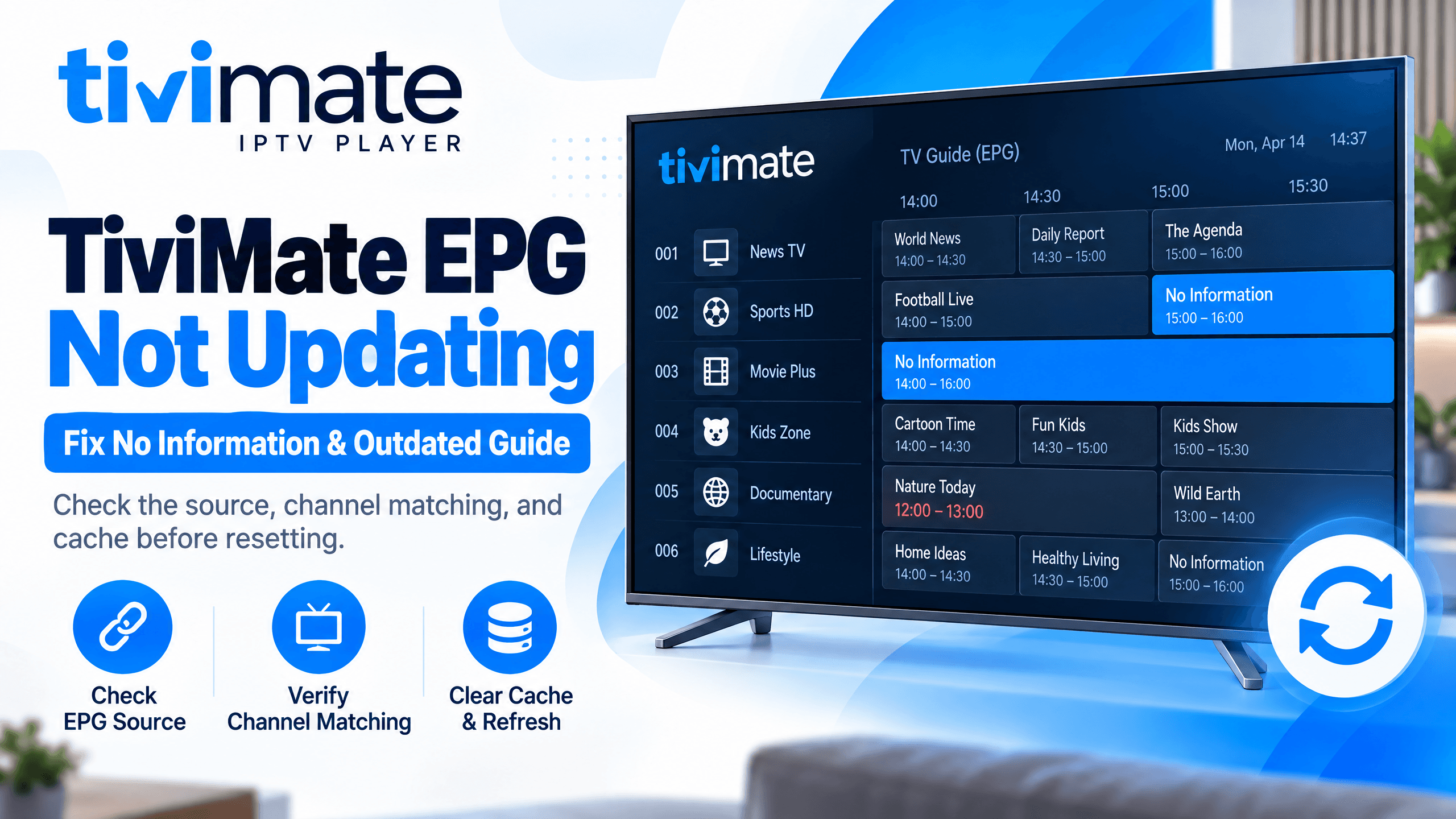
When the TiviMate EPG is not updating, your channels may still play normally while the TV guide shows “No Information,” old programs, missing listings, or incorrect times. This can happen because of an outdated EPG cache, an incorrect EPG source, channel matching problems, a provider-side issue, or a problem with the device or internet connection.
The good news is that you usually do not need to reinstall TiviMate or delete your playlist.
This guide explains the most effective TiviMate EPG not updating fixes and shows what to check before resetting your entire setup. If you still need to connect your service, see how to add a playlist to TiviMate.
What Is EPG in TiviMate?
EPG stands for Electronic Program Guide. It provides the program information displayed in TiviMate, including:
- Current programs
- Upcoming programs
- Program names
- Start and end times
- Program descriptions
- Channel schedules
TiviMate does not create this program information itself. It receives EPG data from an IPTV provider or another EPG source and then matches that information with the channels in your playlist.
This means your channels can work while the EPG does not. A working IPTV stream does not necessarily mean the EPG source is working correctly.
Why Is TiviMate EPG Not Updating?
The most common causes include:
- The EPG source is incorrect or expired.
- The EPG update has failed.
- Old EPG data is stuck in the app.
- The playlist and EPG channel IDs do not match.
- Your IPTV provider's EPG server is having an issue.
- The device has a network or DNS problem.
- The device date or time is incorrect.
- TiviMate has a temporary cache problem.
- The EPG update interval is too long.
- A recent TiviMate update may have introduced a temporary issue.
The right fix depends on whether all channels or only some channels are missing guide information.
TiviMate EPG Not Updating? Try These Fixes First
Before changing advanced settings, start with these basic fixes.
1. Check That Your Channels Still Work
Open a few live channels.
If channels play normally but the guide says “No Information,” the problem is probably related to the EPG rather than your entire IPTV playlist.
If channels also fail to load, check your playlist, login details, internet connection, or IPTV provider first.
2. Manually Update the EPG
The first thing to try is a manual EPG update.
Go to:
Depending on your TiviMate version and playlist configuration, the EPG update option may appear in a slightly different location.
Wait for the update to finish before opening the guide again. Large EPG files can take some time to process.
3. Clear the EPG and Update Again
If the manual update does not work, clear the existing EPG data.
Go to:
Then select:
This forces TiviMate to remove the stored guide information and download it again.
This is one of the safest fixes because you are clearing the guide data rather than deleting your entire TiviMate setup.
4. Restart TiviMate
Completely close TiviMate and open it again.
If you are using a FireStick, Android TV box, Google TV device, or NVIDIA Shield, you can also force-stop TiviMate from the device's app settings.
Then run another EPG update.
Recent TiviMate community reports have also described EPG synchronization problems where force-stopping the app, clearing its cache, restarting the device, and allowing the first EPG sync to finish resolved the problem for some users. These reports are user experiences, not a guarantee that every version or device will behave the same way.
5. Check Your EPG Source
If TiviMate says the EPG update failed, the EPG source may be the problem.
Your IPTV provider may give you:
- An M3U playlist
- Xtream Codes credentials
- A separate XMLTV EPG URL
- An EPG source automatically connected to your account
Check the EPG source assigned to the playlist you are actually using.
If you have multiple playlists, make sure you have not accidentally assigned an EPG source from one provider to another playlist.
An EPG source can download successfully but still provide no useful information if its channel data does not match your playlist.
Check Whether Your EPG URL Still Works
If you manually added an XMLTV EPG URL, make sure it is still active.
Copy the EPG URL and test it in a web browser.
A working XMLTV source may download an XML or compressed XML file. If the URL returns an error such as 404, 401, or a timeout, the source may be expired, restricted, or unavailable.
In that situation, changing TiviMate settings will not fix the source itself.
Ask your IPTV provider for the current EPG URL if the previous one has stopped working.
Update Your Playlist Before Updating the EPG
Sometimes the playlist and EPG become out of sync.
For example, your IPTV provider may change:
- Channel names
- Channel IDs
- EPG IDs
- Server information
- Channel groups
- Playlist data
Try updating your playlist first, then update the EPG.
Go to:
After the playlist finishes updating, go back to:
This can help when the provider has changed channel information.
Fix TiviMate EPG Channel Matching Problems
If only some channels show “No Information,” the problem may not be an EPG download failure.
It could be a channel matching problem.
TiviMate needs to connect the channel in your playlist with the correct channel information in the EPG source.
For example:
- Playlist: ESPN HD USA
- EPG: ESPN USA
If the channel identifiers do not match correctly, TiviMate may not know which program data belongs to that channel.
In this situation, check the channel's EPG assignment or mapping options.
If your provider's EPG does not contain information for a particular channel, TiviMate cannot create that missing schedule itself.
TiviMate EPG Shows the Wrong Time
Sometimes the EPG is updating correctly, but the programs appear several hours early or late.
This usually points toward a time zone or time-shift issue.
First, check your device's date, time zone, and automatic time settings.
On your streaming device, make sure:
- Automatic date and time is enabled
- The correct time zone is selected
- Daylight saving settings are correct where applicable
Then check TiviMate's EPG time-shift settings if your provider's EPG uses a different time zone.
For example, if every program is consistently several hours early or late, the issue is different from an EPG that randomly stops updating.
Do not keep changing the time shift if only one or two channels have incorrect listings. That may indicate a channel-specific EPG problem instead.
Check the EPG Update Interval
TiviMate includes settings for automatic EPG updates.
You can find them under:
Look for options such as:
- Update interval
- Update on app start
- Update on playlist change
- Update EPG
The appropriate interval depends on your provider and setup. TiviMate user guides document 24 hours as a commonly recommended update interval, while some users prefer shorter intervals when their provider frequently changes listings.
There is no universal setting that fixes every EPG problem.
If your guide becomes outdated before the next scheduled update, try a shorter interval. If updates are causing unnecessary loading or network activity, a longer interval may be more suitable.
Clear TiviMate's App Cache
If clearing the EPG does not help, try clearing the TiviMate app cache from your device.
On many Android-based devices:
Then:
- Force-stop TiviMate.
- Restart the device.
- Open TiviMate.
- Wait for it to load.
- Run an EPG update.
Do not confuse Clear Cache with Clear Data.
Clear Cache removes temporary files. Clear Data can reset the application's stored information.
Check Your Internet Connection
The EPG has to be downloaded from its source.
If your internet connection is unstable, the EPG may fail even though some cached channels continue to play.
Try:
- Restarting your router
- Switching from Wi-Fi to Ethernet
- Moving closer to the router
- Testing another network
- Restarting your streaming device
If the EPG works on another network but not your normal connection, the issue may involve your local network, DNS, ISP routing, or access to the EPG server.
Test Without a VPN
A VPN can sometimes affect access to an IPTV or EPG server.
If you normally use a VPN, temporarily test the EPG without it.
If you normally do not use a VPN and suspect your network is interfering with the EPG source, testing through a reputable VPN can help determine whether the problem is network-path related.
Do not assume a VPN is always the solution. It is better to use it as a troubleshooting test.
Check Your Device's Free Storage
Large playlists and EPG files can require local storage for processing and caching.
If your FireStick, Android TV device, Google TV device, or TV box is almost full, TiviMate may have difficulty storing updated guide data.
Remove unnecessary apps or files and make some free storage available.
Then restart the device and try the EPG update again.
TiviMate EPG Not Updating on FireStick
If you are specifically experiencing this problem on a FireStick, follow this order:
- Check that live channels still work.
- Restart the FireStick.
- Force-stop TiviMate.
- Clear TiviMate's cache.
- Open TiviMate.
- Update the playlist.
- Clear the EPG.
- Update the EPG again.
- Check your EPG source.
- Test your network connection.
If the same EPG source works on another compatible device but not your FireStick, the problem may be local to the FireStick setup.
For more FireStick IPTV setup help, see our How to Install TiviMate on FireStick guide.
TiviMate EPG Not Updating After an App Update
If the EPG stopped working immediately after a TiviMate update, check whether the problem affects other users of the same version.
This matters because an app update can sometimes introduce temporary bugs or change how certain data is processed.
For example, TiviMate users reported EPG and playlist problems around some 5.3.x releases in 2026, while other users reported normal operation. This shows why it is important to separate an app-version issue from a provider or device issue.
If the problem started immediately after an update:
- Restart the device.
- Clear the TiviMate cache.
- Clear and rebuild the EPG.
- Check for a newer TiviMate release.
- Check recent community reports.
- Back up your TiviMate configuration before making major changes.
Avoid deleting your entire setup as the first step.
What If EPG Works on Some Channels but Not Others?
This is an important distinction.
All channels show “No Information”
Possible causes include:
- EPG source unavailable
- Incorrect EPG URL
- EPG cache problem
- Failed EPG update
- Provider-side EPG outage
- Network problem
Only a few channels show “No Information”
Possible causes include:
- Missing EPG data for those channels
- Incorrect channel mapping
- Channel ID mismatch
- Provider changed the channel information
- The EPG source does not cover those channels
If only a few channels are affected, changing your entire TiviMate installation is usually unnecessary.
TiviMate EPG Update Is Successful but Still Shows No Information
This can be confusing.
TiviMate may appear to complete the EPG update, but the guide can remain empty.
In this situation, check:
- Is the correct EPG source assigned?
- Does the EPG source contain your channels?
- Do the channel IDs match?
- Is the playlist current?
- Are you using the correct provider's EPG?
- Does the provider's EPG actually contain current listings?
A successful download does not necessarily mean that TiviMate found matching program information for every channel.
Quick TiviMate EPG Troubleshooting Checklist
| Problem | What to Try |
|---|---|
| All EPG information is missing | Clear EPG and update again |
| EPG says “No Information” | Check EPG source and channel matching |
| EPG update fails | Check URL, internet and provider |
| Only some channels have no EPG | Check channel mapping and provider coverage |
| Programs show wrong times | Check time zone and time shift |
| EPG works on another device | Check local device cache, storage and network |
| EPG stopped after an update | Restart, clear cache and check the app version |
| Guide is outdated | Check update interval and force an update |
| EPG URL gives an error | Ask provider for a current EPG source |
| Channels also stopped working | Troubleshoot the playlist/provider first |
When the Problem Is Your IPTV Provider
Sometimes TiviMate is not the problem.
TiviMate is a media player. It depends on your playlist and EPG source for channel and program information.
If:
- Your EPG URL has expired
- The provider's EPG server is offline
- The provider removed guide data
- Channel IDs have changed
- The provider stopped supplying EPG for certain channels
you may need to contact the provider. Looking for a compatible service? Review our IPTV Plans.
Before contacting support, record:
- Your affected channels
- Whether all or only some channels are affected
- The time the problem started
- Whether live channels still work
- Whether the EPG update succeeds or fails
- Any error message shown by TiviMate
This gives the provider much more useful information than simply saying, “My EPG doesn't work.”
Frequently Asked Questions
Why is my TiviMate EPG not updating?
The most common reasons are an incorrect EPG source, failed update, outdated cache, channel matching problem, network issue, or provider-side EPG problem. Start by clearing the EPG and running a manual update.
How do I refresh EPG on TiviMate?
Open Settings → EPG → Update EPG and wait for the update to finish. Menu names can vary slightly between versions.
How do I fix “No Information” on TiviMate?
First, update the EPG. If that does not work, use Clear EPG, then update again. If only certain channels show “No Information,” check channel mapping and whether your provider supplies EPG data for those channels.
Why does TiviMate EPG work on some channels but not others?
Usually, the affected channels are missing from the EPG source or their channel IDs do not match the playlist. Check the EPG mapping and ask your provider whether those channels have guide data.
Why is TiviMate EPG showing the wrong time?
Check your device's time zone and TiviMate's EPG time-shift settings. If all programs are consistently early or late, a time zone or offset issue is likely.
How often should TiviMate update EPG?
A 12 to 24-hour interval is reasonable for many setups, but the best interval depends on how frequently your provider updates its guide data. TiviMate documentation has traditionally listed 24 hours as a recommended interval.
Will clearing TiviMate cache delete my playlist?
Clearing the app cache normally removes temporary files rather than your stored playlist configuration. However, avoid selecting Clear Data unless you are prepared to set up TiviMate again.
Why is TiviMate EPG not updating on FireStick?
Check the FireStick's internet connection, restart the device, force-stop TiviMate, clear its cache, then clear and update the EPG. Also verify that the EPG source is still valid.
Can an IPTV provider cause TiviMate EPG problems?
Yes. If the provider's EPG source is unavailable, outdated, incomplete, or incorrectly mapped, TiviMate cannot create the missing program information itself.
Does TiviMate provide the EPG?
No. TiviMate displays EPG information supplied through your playlist or configured EPG sources. The availability and accuracy of the guide depend largely on the source providing the data.
Why did my TiviMate EPG stop working suddenly?
A provider may have changed its EPG source or channel IDs, the cached EPG may have become stale, your network may be blocking access to the source, or an app/device issue may have occurred. Start with a manual update and check the EPG source.
Should I reinstall TiviMate if the EPG is not updating?
Usually, no. Reinstalling should not be your first step. Try updating the playlist, clearing the EPG, clearing the app cache, checking the EPG source, and restarting the device first.
Final TiviMate EPG Fix
When TiviMate EPG is not updating, do not immediately delete your playlist or reinstall the app.
Start with the simple sequence:
If all channels still show “No Information”, investigate the EPG source and your IPTV provider. If only a few channels are affected, focus on channel mapping and EPG coverage.
For more TiviMate troubleshooting, you can also read our TiviMate Buffering Fix guide and How to Add Playlist to TiviMate guide.